
What Is CLI Bridge? Turn Your ChatGPT Plus or Claude Pro Into an API
Here’s a situation you might recognize.
You’re already paying for ChatGPT Plus, or Claude Pro, or maybe both. You use them every day in the browser or in the CLI. Then one day you want to wire an AI model into something you’re building — an automation, a script, a little internal tool — and you go looking for an API key. And that’s when it hits you: the subscription you’re already paying for doesn’t give you API access. That’s a separate bill, billed by the token, on top of what you’re already paying.
So now you’re paying twice for access to basically the same model.
That’s the exact itch that led to CLI Bridge.
What CLI Bridge actually does
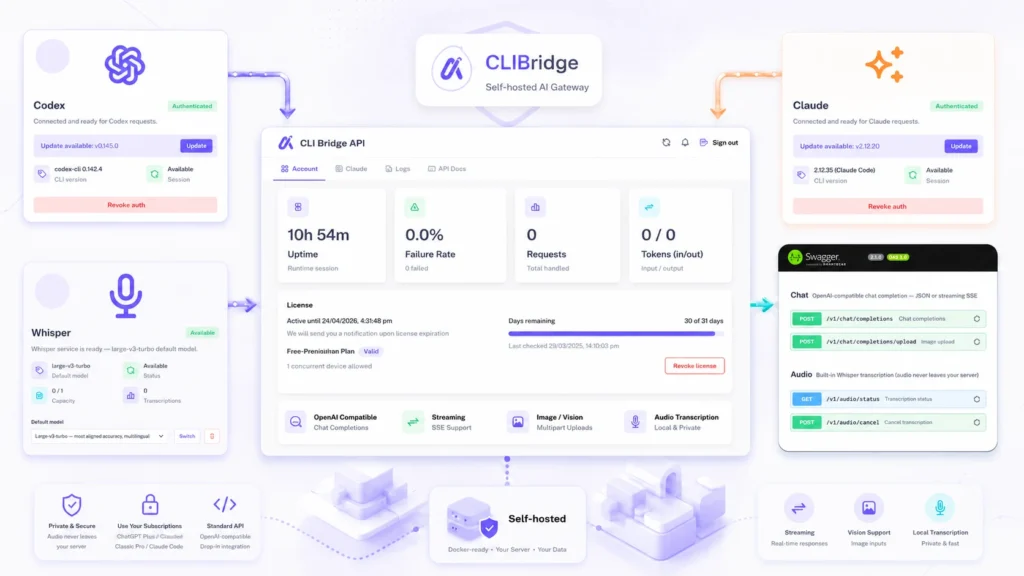
CLI Bridge is a small, self-hosted service that sits in front of the Codex CLI (from OpenAI) or the Claude Code CLI (from Anthropic) — whichever you already use — and exposes them over a normal HTTP API. Not a weird custom format either. It speaks the same request and response shape as OpenAI’s own API, so anything that already knows how to talk to OpenAI — the official SDK, LangChain, an n8n workflow, your own fetch calls — can talk to CLI Bridge instead. You just point it at a different URL.
Under the hood, nothing magic is happening. You already have a working login for Claude Code or Codex CLI on your machine (or you’re willing to do a one-time login inside a container). CLI Bridge runs that CLI in a non-interactive mode, on your behalf, every time a request comes in, and hands the answer back in a clean JSON response — or as a stream, if you want tokens as they’re generated.
Because it’s riding on your existing Plus or Pro subscription, there’s no separate API bill. You’re not paying per token. You’re just using the plan you already have, from more places than just the browser or a terminal window.
Why not just use the official API?
Sometimes you should! If you’re building something that genuinely needs to scale to a lot of usage, or you need guarantees the official API gives you, that’s the right tool. CLI Bridge isn’t trying to replace that.
But if you’re like most people experimenting, automating a personal workflow, or running something small and personal — a home automation setup, a WhatsApp bot, a little internal dashboard — paying metered API rates on top of a subscription you already have just doesn’t make sense. That’s the gap CLI Bridge fills.
One honest thing worth saying up front: this is built around a single person’s subscription, running on a single instance. It’s not meant for pooling one login across a bunch of different people or reselling access. It rides on a consumer plan, and it’s built with that in mind.
What you get, in plain terms
Once it’s running, CLI Bridge gives you:
- A normal
/v1/chat/completionsendpoint, the same one OpenAI’s API uses, with streaming support - Support for sending images along with your messages (vision)
- A built-in audio transcription endpoint powered by a local, fully private Whisper model — no audio ever leaves your machine
- A dashboard where you can check on things, switch which AI backend is active, and see what’s happening under the hood
- License activation through a simple one-time browser flow, and a real Docker image you can pull and run
It’s designed to be boring in the good way — you set it up once, and then it just sits there quietly answering requests.
What’s next
This is the first post in a short series. Here’s where we’re headed:
- Part 2 walks through getting it running: installing it with Docker, activating your license, and connecting your Claude or Codex account. Fifteen minutes, start to finish.
- Part 3 is where we actually use it — your first API call, streaming, sending images, and the audio transcription endpoint.
- Part 4 covers taking it from your laptop to a real server, so it’s actually available when you need it, not just while your machine happens to be on.
If the double-billing problem above sounded familiar, Part 2 is where we fix it. See you there.
